
Multi-Factor Authentication
Multi-Factor Authentication Documentation
DLAS is committed to keeping your account and LIS data secure. As such, in accordance with industry best practices, beginning July 1, 2026, when logging into LIS.virginia.gov (the Legislative Information System), some Administrators will be required to utilize Multi-Factor Authentication (MFA).
If prompted, you will need to download either the Microsoft® Authenticator App or another Authenticator App such as Google™, Okta® Verify, or DUO® Mobile to your smartphone. These apps can be downloaded for free from the Apple® App Store or the Google™ Play Store.
To choose and set up an MFA authenticator:
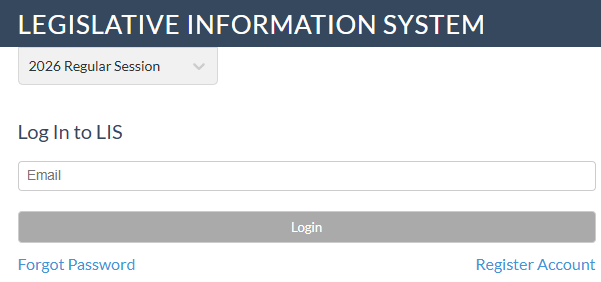
1. Access the Login screen from Lobbyist-in-a-Box (LIAB) Home page:
OR
Access the Login screen from LIS Home page:
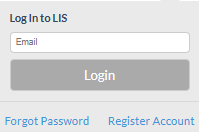
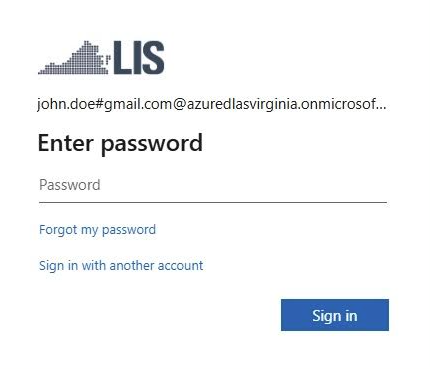
- Enter your Email address in the space provided and select Login. (Please note: when you enter your password, you will see your system name displayed – this is automatic and expected. The system replaces the period between your chosen email name and the domain with a # symbol and then adds an @ symbol, followed by azuredlasvirginia.onmicrosoft.com. For example, if your e-mail address is john.doe@gmail.com, your e-mail address will display as john.doe#gmail.com@azuredlasvirginia.onmicrosoft.com. You will never use this system-created ID!) Always log into LIS using the e-mail address you registered with LIS when you established your LIAB account.
- Enter the Password associated with your LIS account and select Sign in
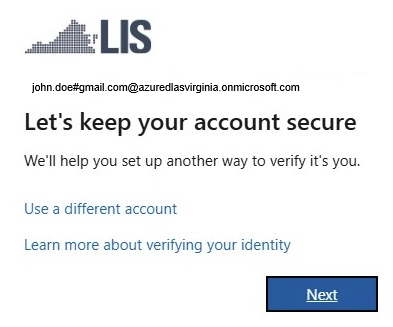
- A new screen will display the message Let’s keep your account secure, then select Next
- A new screen will display requesting that you Install Microsoft Authenticator with links provided to Get It on Google™ Play or Download on the App Store.
You are not required to use the Microsoft® Authenticator – you may choose another authenticator, such as Google™, Okta® Verify, or DUO® -- just select the link to Set up a different authentication app. Depending on the authenticator that you choose, the following screens may not exactly match but the information is basically the same.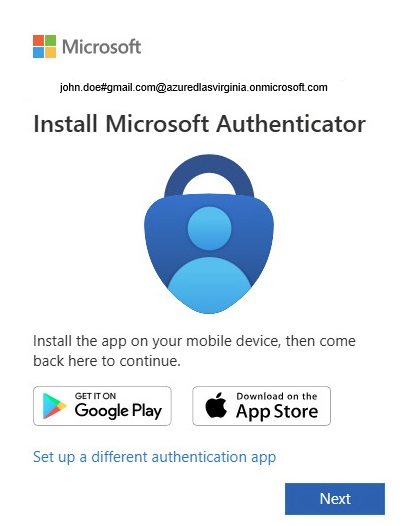
- Select Next to Set up your account in app
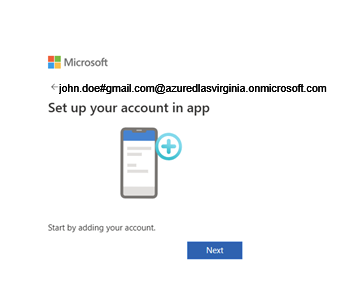
- Open the authenticator app of your choice on your smartphone.
-
A new page will display asking you to Scan the QR code. Within the authenticator app, choose to add an account and choose the option to scan a QR code. Scan the QR Code, then come back and select Next
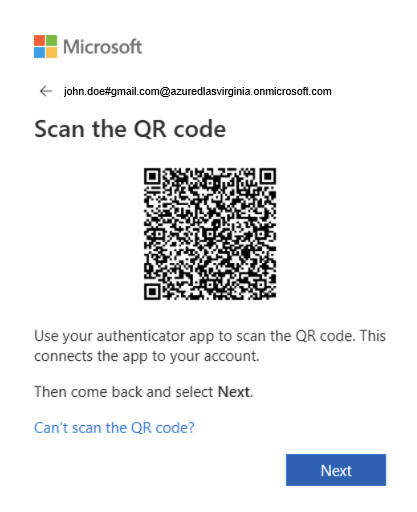
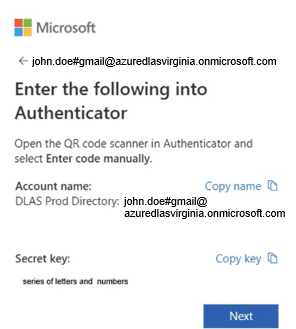
If you are unable to scan the QR Code, select the link to Can’t scan the QR code? A new page will display asking that you open the QR code scanner in your Authenticator and select Enter code manually and follow the instructions provided.
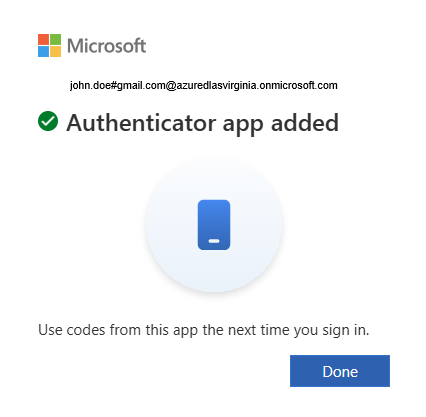
9. You will receive the following message upon successfully downloading the authenticator
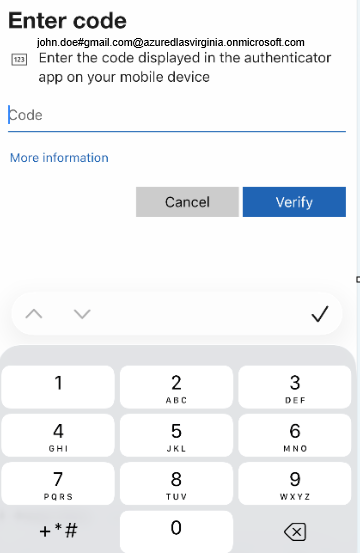
10. In order to access your LIAB account, enter the Code provided, then select Verify
Please contact the LIS Customer Service portal at lis@dlas.virginia.gov or leave a detailed voice-mail message, including your email address, at (804) 786-9631, if you have any questions regarding this mandatory requirement.
